Sales Flyer Studio
How to use the studio
Everything the sales team needs to keep the seven flyers up to date and send them to clients — from signing in to saving a PDF, step by step.
Getting started
The studio is where the sales team keeps the hotel’s seven A4 sales flyers — The Occasion Edit — and turns them into PDFs and images for clients. Open it at sindhorn-midtown-sales-templates.pages.dev in any browser, on a computer or a phone.
| Flyer | For |
|---|---|
| Airline staff | Crew rates — the hotel’s one international flyer |
| Corporate stays | Corporate room rates |
| Longstay | Monthly residence rates |
| Meetings | Coffee break, half-day, full-day and dinner meeting packages |
| Weddings | Wedding dining, packages and extras |
| Engagements | The engagement ceremony package and add-ons |
| Outside catering | Catering at a venue of the client’s choice |
Anyone with the link can read every flyer and save it as a PDF without signing in. Signing in lets you change the words, photographs and tables, keep your own copies, save versions and save images.
Everything you change on the shared flyers is seen by the whole team the moment it saves. To try something out, make your own copy first — see Shared flyers and your own copies.
Signing in
You sign in with an employee code and a six-digit passcode; the studio then says Signed in as your name above the buttons on the right.
- Press Sign in to edit at the top of the right pane.
- Type the employee code, then the six-digit passcode. The sixth digit signs you in by itself.
- If the studio says you are still on the starting passcode, press Change passcode and choose your own.
- Change passcode sits beside Sign out once you are signed in. Type six new digits once; they replace the old passcode straight away, for everyone who uses that code.
- Sign out makes the flyers read-only again. If you were in your own copy, it takes you back to the shared flyers.
- If a session ends while the page is open, the studio says “Your session has ended. Sign in again to keep editing.” Nothing you typed is lost: sign in again and it saves.
The code and passcode never go in a message, an email or a document. Hand them over in person.
Finding your way around
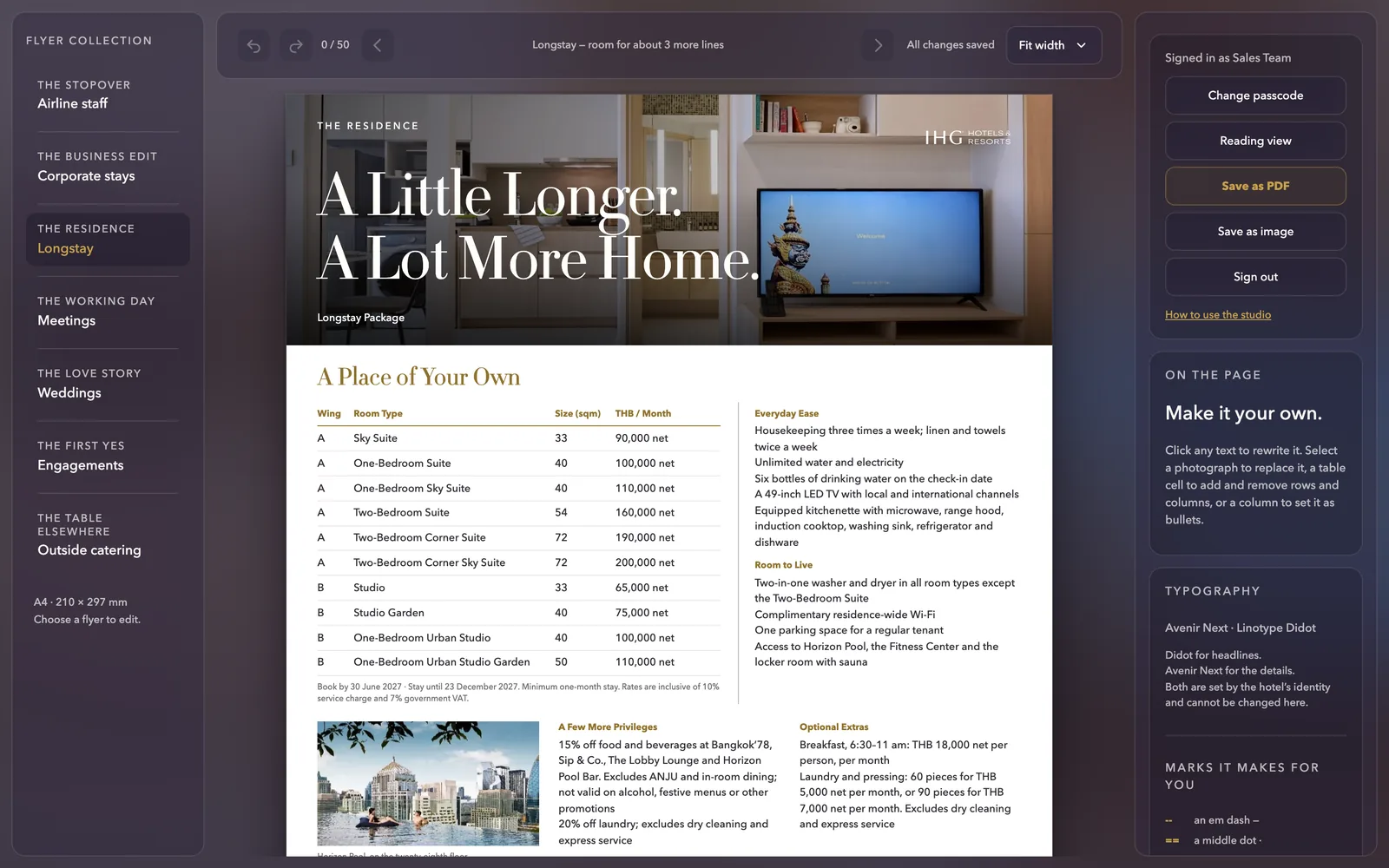
The screen has three parts: the flyer list on the left, the page in the middle, and the right pane, whose tools change with whatever you click on the page.
| Part | What it holds |
|---|---|
| Flyer list (left) | The seven flyers, each under its heading, such as THE RESIDENCE for Longstay. On a phone it becomes a drop-down at the top. |
| Page (middle) | The flyer at full A4, exactly as it will print. Above it: the flyer’s name, how much room is left, undo and redo with a step count, and arrows for a flyer with more than one page. |
| Right pane, top | Sign in to edit or Sign out, Change passcode, Reading view, Save as PDF, Save as image, and a link back to this guide. |
| Right pane, On the page | Tools for what you clicked: a table cell, a photograph, a column. |
| Right pane, lower down | Typography, the typing shortcuts, and Edition: copies, versions, resets and Save all seven as PDF. |
- Zoom: the page opens at Fit width. The zoom menu also offers 75%, 100% and 125%.
- Reading view hides the editing outlines so you see the page as a client will. The button then reads Studio view; press it to go back to editing.
- The status line always says where your work stands: Saving…, All changes saved, or a warning — see Troubleshooting.
Editing words
Click any words on the page and type; the studio saves as you go, and the status line moves from Saving… to All changes saved.
- Every line is a line on the page. Press Return for a new line inside the same field.
- Titles fix their own capitals when you click away: Title Case, with small words such as “and”, “of” and “the” in lower case. Names and acronyms keep their shape (THB, ANJU, Bangkok’78), and units stay lower case (sqm, net, am, pm).
- Spell check underlines in red. Hotel names such as Sindhorn and Langsuan are underlined too: right-click and choose Add to dictionary.
- Pasted text always arrives as plain text, in the page’s own fonts, with stray spaces at line ends removed.
- Phone numbers keep their hyphens: 02-796-8888 is never turned into a range.
The studio writes three marks for you when you click away from a field:
| You type | You get |
|---|---|
-- | an em dash — |
== | a middle dot ·, spaced as a separator |
1-5 | an en dash between figures: 1–5 |
A hyphen inside a word, as in check-in, is left alone.
Undo and redo: Ctrl Z (Cmd Z on a Mac) undoes, and Ctrl Shift Z or Ctrl Y redoes. The counter beside the buttons shows how many of the 50 steps you have. Undo lasts only while the tab is open; to keep a point you can return to later, save a version.
Bullet points
Any column of text can be bulleted — the whole column, or only the lines you choose, so a list can sit under an intro line.
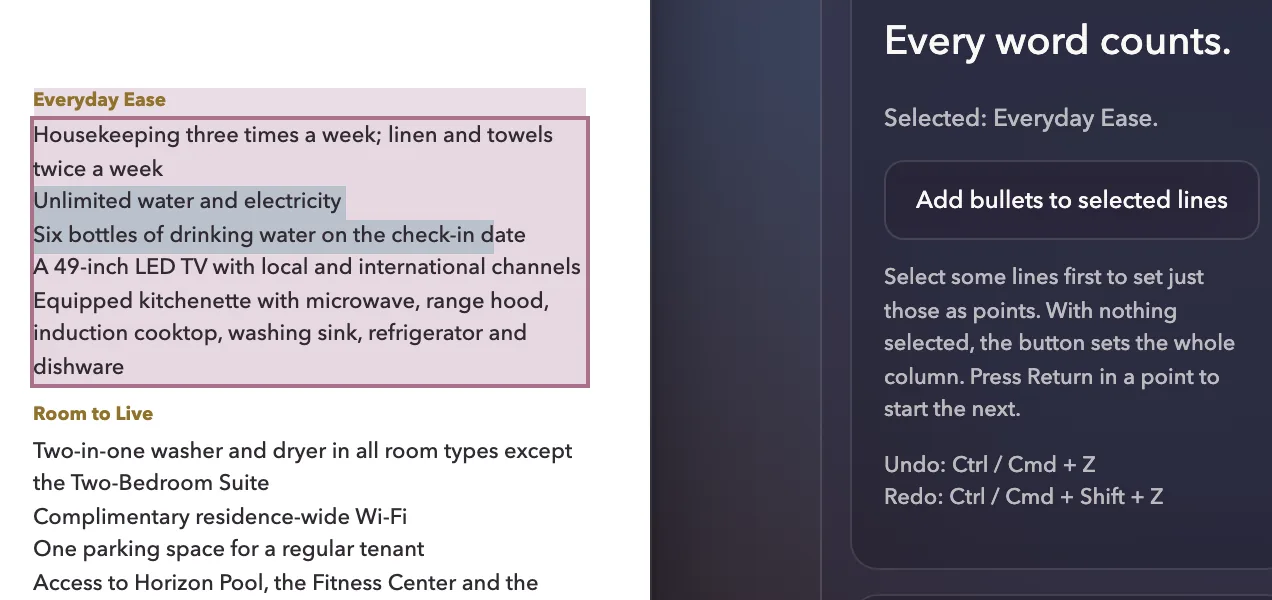
Only some lines
- Select the lines with the mouse. They can be part-selected: touching a line counts.
- In the right pane, press Add bullets to selected lines.
- To take them off again, select the same lines and press Remove bullets from selected lines.
The whole column
- Click anywhere in the column without selecting any words.
- Press Add bullets in the right pane. Every line becomes a point; Remove bullets takes them all off.
- Return inside a point starts the next point. Return on a plain line starts a plain line.
- Typing a middle dot and a space at the start of a line (
·, or==then a space) also makes it a point once you click away. - Bullets never change the words. Taking them off puts the text back exactly as it was, and undo covers every change.
Tables
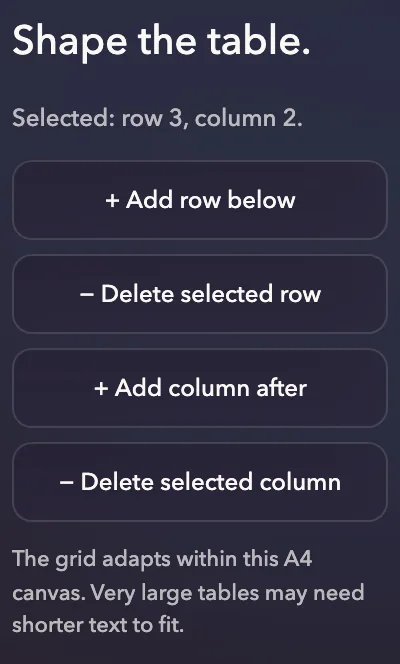
Click any cell to type in it; the right pane then shows which row and column you are in, with buttons to add or remove rows and columns.
- + Add row below — a blank row under the selected one.
- − Delete selected row — removes it. Not offered on the heading row, or when only one row is left.
- + Add column after — a new column to the right, headed “Column” until you rename it.
- − Delete selected column — removes it. Not offered when only one is left.
Headings in the top row fix their own capitals, like titles. The small note under a table — dates, the tax line — is ordinary text: click it and type. Prices carry their marker, with THB in the column heading: see House style.
Photographs
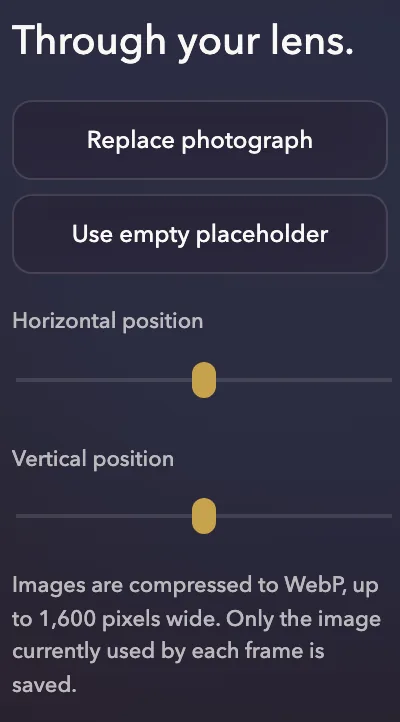
Click a photograph — the large one at the top or any smaller one — and the right pane shows the photo tools.
- Replace photograph opens your files. Choose a JPEG, PNG, WebP or AVIF picture.
- Drag Horizontal position and Vertical position to choose which part of the picture the frame shows.
- Type the caption under a smaller photograph like any other text.
- Use empty placeholder clears the frame, for a page waiting on a new shoot.
- The IHG mark on the large photograph sets its own colour by reading the corner it sits in. If it picks the wrong one, set IHG mark to Always white or Always charcoal.
- Size is handled for you. Pictures are compressed to WebP, at most 1,600 pixels wide — plenty for A4. Only the picture in use is kept.
- From the keyboard, Tab to a photograph and press Enter to replace it.
Fitting on one A4 page
Each flyer is one fixed A4 page, and the studio keeps it that way: as you add words it tightens the spacing step by step, never the size of the type.
- What gives: the gaps between sections, the height of the large photograph and the padding in table rows. The type stays the same size, so the page stays readable.
- How much room is left: when you are signed in, the line above the page says “room for about 4 more lines”, or “no room left for more text”.
- When it no longer fits: the page is marked as running past A4, and Save as PDF and Save as image stop with “A page runs past A4. Shorten the text or drop a row, then save again.”
When a page is full, shorten in this order:
- Anything said twice. Each fact belongs in one place on the page.
- Long terms. One short point per line reads better and takes less room.
- A table row that a client can do without.
- A caption or an intro sentence.
The PDF and the image are fitted again by the machine that makes them, so a page that fits on screen fits on paper too.
Shared flyers and your own copies
The shared flyers are the one set the whole team uses, and every change to them reaches everyone at once; a copy is a private set of all seven for one client or one idea.
Make a copy
- Under Edition in the right pane, press Save as my own copy.
- Name it so you can find it again, such as “Airline rates 2027”, and press Save a copy.
- You are now in the copy. The Edition line says “Your own copy” with its name.
Find, open and delete copies
- My flyers, under Edition, lists the shared set first, as The Occasion Edit, then your copies, newest first. The picture under Versions and resets shows it.
- Click a name to open it. Click The Occasion Edit to go back to the shared flyers.
- The × beside a copy deletes it after you confirm. If the copy cannot be deleted, the studio says so and keeps it listed.
A copy belongs to the employee code that saved it, and anyone who signs in with that code sees it too. Signing out while you are in a copy takes you back to the shared flyers.
Versions and resets
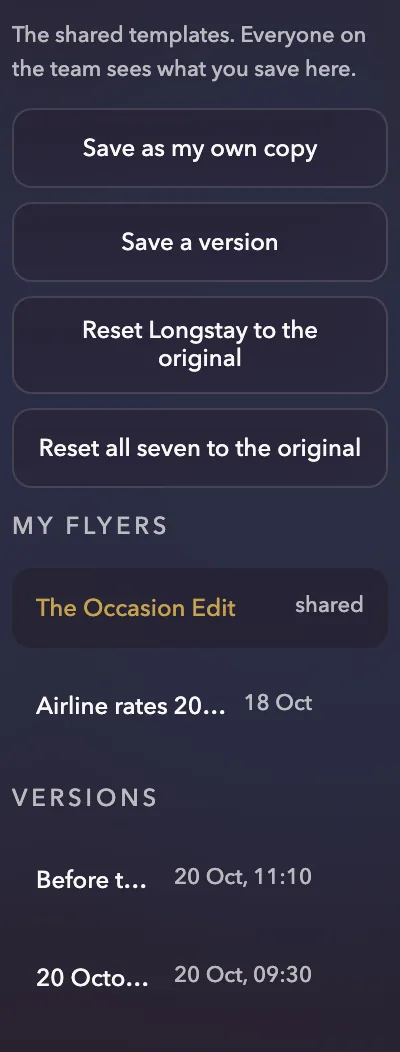
A version is a saved snapshot of all seven shared flyers that you can go back to on any day, long after undo is gone. Save one before every rate change or big rewrite.
Save a version
- Open the shared flyers, then press Save a version under Edition.
- Today’s date is filled in as the name. Add what it is for, such as “Before the 2027 rates”, and press Save version.
- It appears under Versions with its date and time.
Go back to a version
- Click the version’s name and confirm with Go back.
- The studio first saves what is there now as a version called “Before going back to…”, then puts the flyers back. Undo also reverses it while the tab is open.
- The × beside a version deletes it after you confirm.
- The latest 30 are kept. Each new version removes the oldest beyond thirty.
- Versions belong to the code that saved them, like copies.
Resets
The two reset buttons name the flyer in front of you and where it goes back to.
| On the shared flyers | In your own copy |
|---|---|
| Reset Longstay to the original — the open flyer goes back to the original collection. A version is saved first. | Reset Longstay to the shared template — the open flyer goes back to the shared flyers. |
| Reset all seven to the original — all seven go back to the original collection. A version is saved first. | Reset all seven to the shared template — all seven go back to the shared flyers. |
On the shared flyers, a reset does not go ahead if the version before it cannot be saved. In a copy, undo puts it back while the tab is open.
Exporting
A flyer leaves the studio as a PDF for email and print, or as a picture for LINE and WhatsApp. Both are made from the page exactly as you see it.
| Button | You get | File name |
|---|---|---|
| Save as PDF, top of the right pane | The open flyer, A4, in about ten seconds | Sindhorn Midtown · Longstay.pdf |
| Save all seven as PDF, bottom of the right pane | All seven flyers in one PDF | Sindhorn Midtown · The Occasion Edit.pdf |
| Save as image, top of the right pane | The open flyer as a JPEG, 1,588 × 2,246 pixels, sharp on a phone | Sindhorn Midtown · Longstay.jpg |
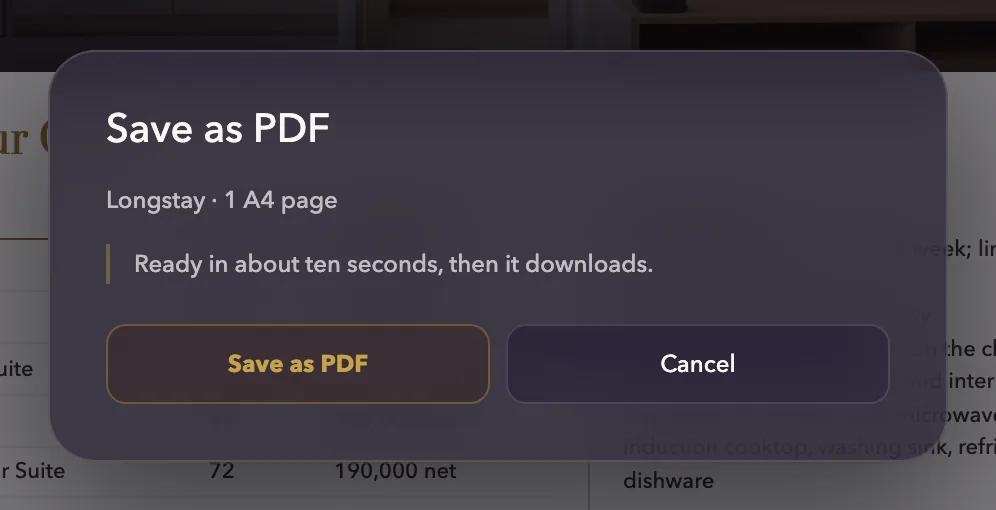
Save as PDF, step by step
- Open the flyer and press Save as PDF.
- Check the box: it names the flyer and its page count, and warns you if an offer has closed.
- Press Save as PDF. The bar moves through laying out and typesetting, then the file lands in your downloads.
- Signed out, Save as PDF opens your browser’s print window instead. Choose Save as PDF as the destination; the page size and margins are already set.
- Save as image needs you to be signed in. A flyer with two pages gives two pictures, about 20 seconds apart.
- Closed offers: when a flyer’s booking or validity date has passed, the right pane and the PDF box both say so — for example “This offer closed on 30 June 2026.” Check the dates before it goes to a client.
- Busy: if the studio says “The renderer is busy”, wait half a minute and press again. It makes three files at a time.
House style
The seven flyers read as one collection because they follow the same rules; when you write new words, follow them too.
| Rule | Example |
|---|---|
| Every price carries its marker: ++ means charges are added, net means they are included | 4,200++ · 90,000 net |
| THB goes in a table’s heading, and before a price in running text | THB / Month · THB 18,000 net per person |
| The tax line appears once per flyer, in the note under the prices | ++ flyers: Rates are subject to 10% service charge and 7% government VAT. net flyers: Rates are inclusive of 10% service charge and 7% government VAT. |
| Airline uses the international number; every other flyer the local one | +66 2 796 8888 · 02-796-8888 |
| Dates in full, day first; times in lower case | 23 December 2026 · 6:30–11 am |
| Ranges take an en dash | 5–9 pm · 24 December 2026 – 3 January 2027 |
| A middle dot separates items on one line | Book by 30 June 2027 · Stay until 23 December 2027 |
| American English, and no comma before “and” in a list | Fitness Center · juice and infused drinks |
| Longstay is one word | Longstay Package |
| A subtitle names the package only; dates go in the note | Meeting Package |
| Terms are one point per line, as bullets | Rate Terms & Conditions |
The studio handles the rest: capitals in titles, the dashes and dots you type as shortcuts, the brass accent colour, and the two typefaces — Linotype Didot for headlines and Avenir Next for everything else, set by the hotel’s identity.
Troubleshooting
Every message the studio shows says what happened; this is what to do about each one. Your typing is kept on the device until it saves, so reloading the page is always safe.
| The studio says | What to do |
|---|---|
| Your session has ended. Sign in again to keep editing. | Sign in again. Nothing you typed is lost. |
| That employee code and passcode do not match. | Check the code, and that the passcode is six digits. |
| Offline · changes stay on this device | The connection dropped. Keep the tab open; it saves when you are back online. |
| Saved on device · sync pending | The same: it is waiting to save. Press Retry save if it offers. |
| A newer edition exists. | Someone saved first. Use saved edition takes theirs, and undo brings yours back; Save my edition instead keeps yours; Decide later leaves both. |
| Your last change has not saved yet. Try again in a moment. | Wait for All changes saved, then press again. |
| A page runs past A4. Shorten the text or drop a row, then save again. | See Fitting on one A4 page. |
| This offer closed on … | Update the dates, or check them before the flyer goes out. |
| The renderer is busy. Try again in half a minute. | Wait 30 seconds and press again. |
| Sign in to save images. | Sign in first: images need a signed-in seat. |
| That copy was not deleted. | It may already be gone, or belong to another code. The list shows what is still there. |
If something looks wrong and none of these fit, reload the page. Then tell the studio’s owner what you pressed and what it said.